
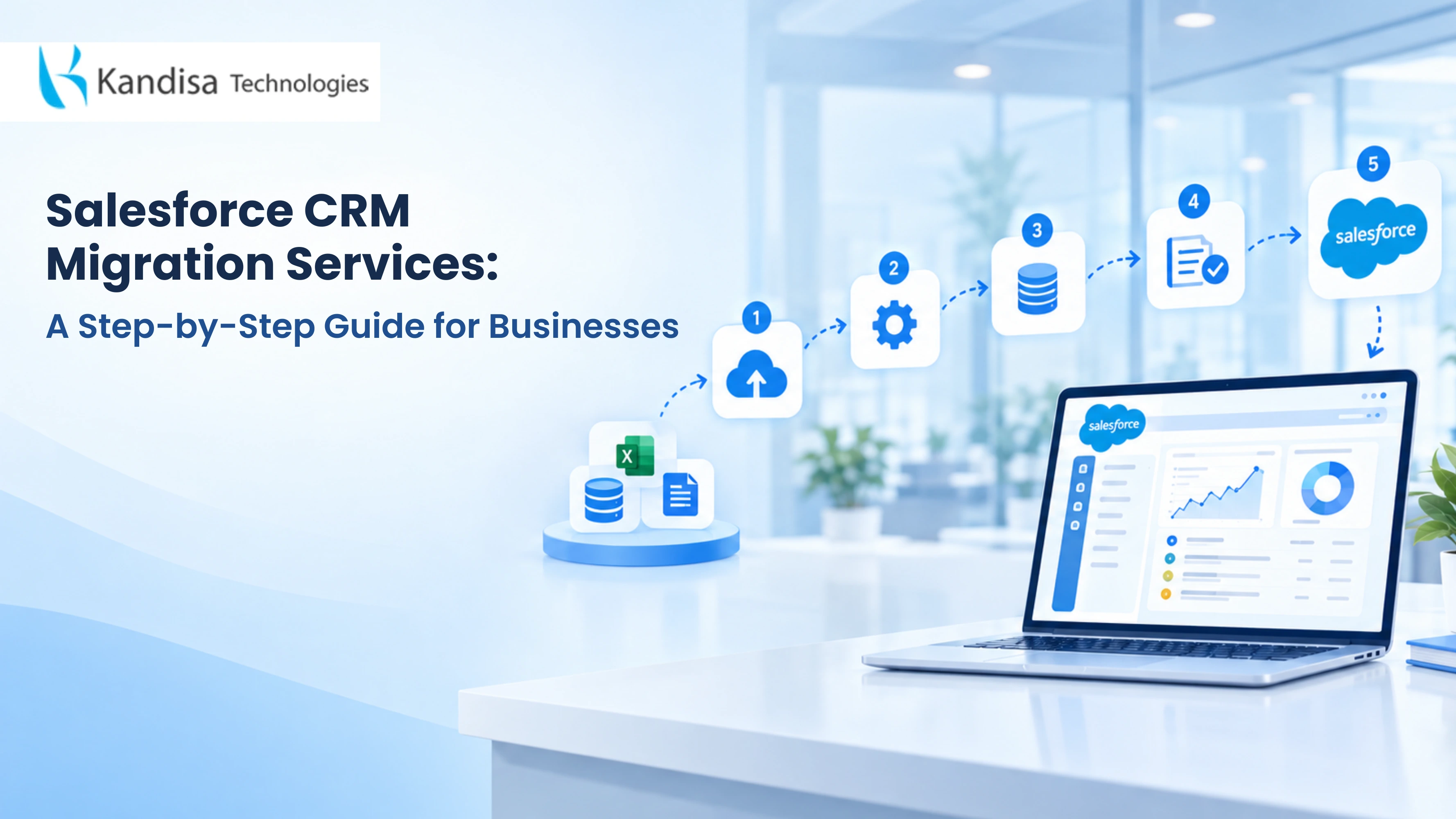
The difference lies in preparation. Effective Salesforce CRM Migration Services cover much more than uploading spreadsheets. They establish what needs moving, how information should behave in Salesforce and how teams will work after launch.
What Is Salesforce CRM Migration?
Salesforce CRM migration is the process of transferring customer records and relevant business data from an existing CRM, database or spreadsheet system into Salesforce. It can also involve moving between Salesforce organisations.
A complete project considers data structure, relationships, access permissions, integrations and user readiness. Workflows and configurations require separate assessment; exporting records alone does not recreate them.
Step 1: Define What Success Looks Like
Start with operational questions rather than software features. Which teams will use Salesforce? Which reports must work on day one? What information is essential for an active deal or unresolved support case?
Agree on measurable acceptance criteria, such as matching account totals, complete opportunity ownership and accurate pipeline values. Assign a decision-maker for disputed records. This prevents scope changes from becoming last-minute surprises.
Before approving the plan, ask each department to identify records it cannot afford to lose. This reveals conflicting priorities while there is time to resolve them.
Step 2: Audit Every Data Source
List the systems holding customer information, including databases, spreadsheets, marketing platforms and support tools. Identify record volumes, custom fields, attachments, historical activities and dependencies.
Do not assume the existing CRM contains everything. A sales team may maintain important contract dates elsewhere. Decide what belongs in Salesforce, what should remain archived and what must stay accessible for legal or operational reasons.
Step 3: Clean Data Before Moving It
Migration is a chance to correct years of inconsistent data. Standardise country names, phone formats and company naming conventions. Resolve duplicates, obsolete contacts and incomplete records using agreed business rules.
Treat deduplication carefully: two customers with similar names may be different people. Preserve a secure copy of original exports, record every transformation and confirm retention requirements before deleting anything.
Step 4: Map Fields and Record Relationships
Create a mapping document showing where each source field belongs in Salesforce. Account, Contact, Opportunity and Case records have relationships that must remain intact.
Salesforce recommends importing records in dependency order and using legacy identifiers or External ID fields to reconnect related information. Check required fields, picklist values, currencies, ownership and date formats before loading data. A misplaced field can distort reporting long after go-live. (help.salesforce.com, help.salesforce.com)
Step 5: Configure Salesforce for Real Work
Build the destination environment before migration. Establish relevant objects, record types, validation rules, access permissions and reporting structures. Review integrations with finance, marketing and customer support systems.
This is where Salesforce Consulting and Implementation expertise matters. The aim is not to copy every outdated process. It is to configure Salesforce around the workflows people genuinely need, while preserving controls that protect customer information.
Step 6: Test With a Representative Sample
Never make the production environment your first experiment. Run a trial migration in a suitable Salesforce sandbox using records that reflect real complexity: duplicate names, multiple contacts, open cases and custom relationships.
Test access, automation behaviour, reports and integrations alongside the imported records. Involve the people who will use Salesforce daily. A technically valid record is not useful if a service agent cannot see the customer’s case history.
Step 7: Plan the Cutover and Transfer Data
Choose a cutover window based on business activity. Define when source-system edits stop, who authorises the final export and how changes made during transition will be handled.
Salesforce offers a Data Import Wizard for simpler supported imports and Data Loader for more complex or larger transfers. Select tools according to object support, volume and mapping requirements. Record successful imports and errors, and retain a documented rollback plan. (trailhead.salesforce.com, developer.salesforce.com)
Include a communication schedule for staff. Nobody should discover an unavailable system during a client conversation. Give teams one clearly designated escalation contact.
Step 8: Reconcile, Train and Monitor
A completed upload is not proof of a completed migration. Compare source and destination record counts, totals, ownership and relationship integrity. Investigate failed imports and sample important customer journeys end to end.
Train users on their actual tasks, including updating opportunities, logging interactions and finding account histories. Monitor errors, adoption and report accuracy after launch. Keep named owners responsible for resolving issues rather than treating go-live as the finish line.
Mistakes That Make CRM Migration Expensive
The most damaging mistakes are often avoidable: moving every legacy field without reviewing its purpose, overlooking integrations, switching systems without reconciliation and failing to involve frontline users.
Security deserves equal attention. Restrict migration-file access, protect sensitive information in testing and verify permissions before staff begin using the new environment.